
Description
While two-factor authentication (2FA) is not completely fool-proof, it is one of the best ways to protect your accounts from hackers. It adds an extra step when logging in, which is a small extra effort for you, but it dramatically boosts your security.
With 2FA, you’ll be asked for a special login code when signing in from a device or browser Facebook doesn’t recognize—even if someone already knows your password.
Here’s how to enable 2FA on Facebook for Android, iOS, and the web.
## **How to set up 2FA for Facebook on Android**
1. Open the **Facebook app** (make sure you’re signed in).
2. Tap the **menu** (three horizontal lines).
3. Choose **Settings & Privac**y > **Settings**.
4. In the **Accounts Center** tap **Password and security**.
5. Tap **Two-factor authentication** and select your account your want to protect.
6. Re-enter your password. Facebook will send a one-time code to your phone or email to confirm it’s you.
7. Pick your preferred security method:
* **Authentication app (recommended)** – such as Google Authenticator or Authy.
* **Text message (SMS) or WhatsApp** – codes sent to your phone number.
* **Security key** – a USB or Bluetooth device.
* **Recovery codes** – backup codes to use if other methods aren’t available.
8. Follow on-screen instructions to complete the setup.
## How to set up 2FA for Facebook on iPhone or iPad
1. Open the **Facebook app** (make sure you’re signed in).
2. Tap your **profile picture** in the bottom right corner.
3. Go to **Settings & Privacy > Settings**.
4. Tap on **Accounts Center** , then **Password and security**.
5. Tap **Two-factor authentication** and select your account.
6. Re-enter your password. Facebook will send a one-time code to your phone or email to confirm your identity.
7. Choose your preferred method:
* **Authentication app (recommended)** – such as Google Authenticator or Authy.
* **Text message (SMS) or WhatsApp** – codes sent to your phone number.
* **Security key** – a USB or Bluetooth device.
* **Recovery codes** – backup codes to use if other methods aren’t available.
8. Follow on-screen instructions to complete the setup.
## How to set up 2FA for Facebook on the web
1. Go to facebook.com/settings (or from the home screen, click your profile picture and then **Settings & privacy**).
2. Navigate to **Password and security**.
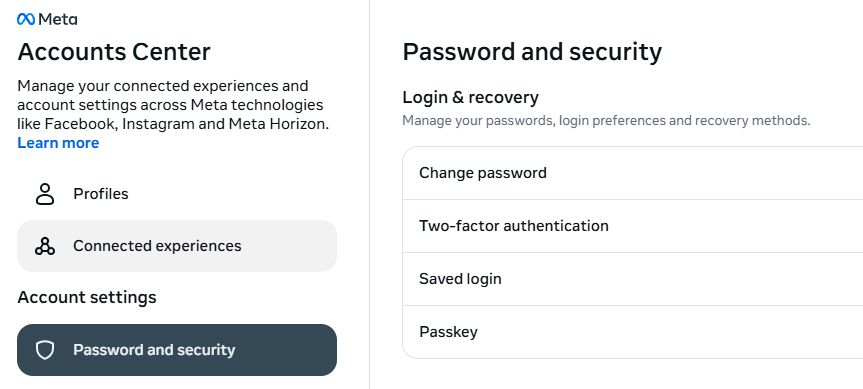
3. Click **Two-factor authentication** , then select your account.
4. Facebook will send a one-time code to your WhatsApp or email to confirm it’s you, and may ask you to re-enter your password.
5. Choose your preferred method:
* **Authentication app (recommended)** – such as Google Authenticator or Authy.
* **Text message (SMS) or WhatsApp** – codes sent to your phone number.
* **Security key** – a USB or Bluetooth device.
* **Recovery codes** – backup codes to use if other methods aren’t available.
6. Follow on-screen instructions to complete the setup.
## Why you should**enable it today**
Even the strongest password can be stolen. With 2FA, attackers would also need access to your additional factor to be able to log in to your account, whether that’s a code on a physical device or a security key. That makes hijacking your account much harder.
We recommend you set up 2FA on all your important accounts, including messaging and social media accounts. It only takes a few minutes, but can save you from hours or even days of stress later. It’s currently the best password advice we have.
* * *
**We don 't just report on threats - we help protect your social media**
Cybersecurity risks should never spread beyond a headline. Protect your social media accounts by using Malwarebytes Identity Theft Protection.
With 2FA, you’ll be asked for a special login code when signing in from a device or browser Facebook doesn’t recognize—even if someone already knows your password.
Here’s how to enable 2FA on Facebook for Android, iOS, and the web.
## **How to set up 2FA for Facebook on Android**
1. Open the **Facebook app** (make sure you’re signed in).
2. Tap the **menu** (three horizontal lines).
3. Choose **Settings & Privac**y > **Settings**.
4. In the **Accounts Center** tap **Password and security**.
5. Tap **Two-factor authentication** and select your account your want to protect.
6. Re-enter your password. Facebook will send a one-time code to your phone or email to confirm it’s you.
7. Pick your preferred security method:
* **Authentication app (recommended)** – such as Google Authenticator or Authy.
* **Text message (SMS) or WhatsApp** – codes sent to your phone number.
* **Security key** – a USB or Bluetooth device.
* **Recovery codes** – backup codes to use if other methods aren’t available.
8. Follow on-screen instructions to complete the setup.
## How to set up 2FA for Facebook on iPhone or iPad
1. Open the **Facebook app** (make sure you’re signed in).
2. Tap your **profile picture** in the bottom right corner.
3. Go to **Settings & Privacy > Settings**.
4. Tap on **Accounts Center** , then **Password and security**.
5. Tap **Two-factor authentication** and select your account.
6. Re-enter your password. Facebook will send a one-time code to your phone or email to confirm your identity.
7. Choose your preferred method:
* **Authentication app (recommended)** – such as Google Authenticator or Authy.
* **Text message (SMS) or WhatsApp** – codes sent to your phone number.
* **Security key** – a USB or Bluetooth device.
* **Recovery codes** – backup codes to use if other methods aren’t available.
8. Follow on-screen instructions to complete the setup.
## How to set up 2FA for Facebook on the web
1. Go to facebook.com/settings (or from the home screen, click your profile picture and then **Settings & privacy**).
2. Navigate to **Password and security**.

3. Click **Two-factor authentication** , then select your account.
4. Facebook will send a one-time code to your WhatsApp or email to confirm it’s you, and may ask you to re-enter your password.
5. Choose your preferred method:
* **Authentication app (recommended)** – such as Google Authenticator or Authy.
* **Text message (SMS) or WhatsApp** – codes sent to your phone number.
* **Security key** – a USB or Bluetooth device.
* **Recovery codes** – backup codes to use if other methods aren’t available.
6. Follow on-screen instructions to complete the setup.
## Why you should**enable it today**
Even the strongest password can be stolen. With 2FA, attackers would also need access to your additional factor to be able to log in to your account, whether that’s a code on a physical device or a security key. That makes hijacking your account much harder.
We recommend you set up 2FA on all your important accounts, including messaging and social media accounts. It only takes a few minutes, but can save you from hours or even days of stress later. It’s currently the best password advice we have.
* * *
**We don 't just report on threats - we help protect your social media**
Cybersecurity risks should never spread beyond a headline. Protect your social media accounts by using Malwarebytes Identity Theft Protection.
Basic Information
ID
MALWAREBYTES:325AF9A0D257AA0450DAC313032478A1
Published
Oct 6, 2025 at 10:14