
Description
Two-factor authentication (2FA) isn't foolproof, but it is one of the best ways to protect your accounts from hackers.
It adds a small extra step when logging in, but that extra effort pays off. Instagram’s 2FA requires an additional code whenever you try to log in from an unrecognized device or browser—stopping attackers even if they have your password.
Instagram offers multiple 2FA options: text message (SMS), an authentication app (recommended), or a security key.
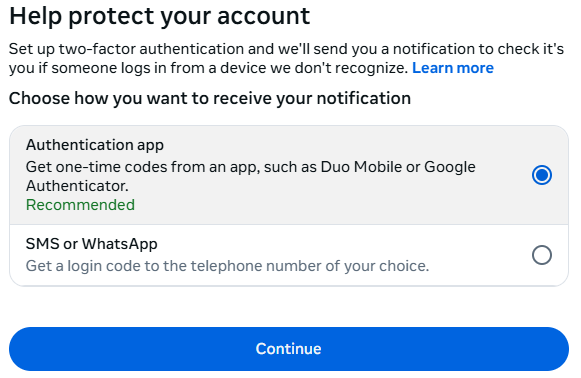
Here’s how to enable 2FA on Instagram for Android, iPhone/iPad, and the web.
## **How to set up 2FA for Instagram on Android**
1. Open the Instagram app and log in.
2. Tap your **profile pictur** e at the bottom right.
3. Tap the **menu icon** (three horizontal lines) in the top right.
4. Select **Accounts Center** at the bottom.
5. Tap **Password and security** > **Two-factor authentication**.
6. Choose your Instagram account.
7. Select a verification method: **Text message (SMS)** , **Authentication app** (recommended), or **WhatsApp**.
* **SMS:** Enter your phone number if you haven’t already. Instagram will send you a six-digit code. Enter it to confirm.
* **Authentication app** : Choose an app like Google Authenticator or Duo Mobile. Scan the QR code or copy the setup key, then enter the generated code on Instagram.
* **WhatsApp:** Enable text message security first, then link your WhatsApp number.
8. Follow the on-screen instructions to finish setup.
## **How to set up 2FA for Instagram on iPhone or iPad**
1. Open the Instagram app and log in.
2. Tap your **profile pictur** e at the bottom right.
3. Tap the **menu ico** n > **Settings** > **Security** > **Two-factor authentication**.
4. Tap **Get Started**.
5. Choose **Authentication app** (recommended), **Text message** , or **WhatsApp**.
* **Authentication app** : Copy the setup key or scan the QR code with your chosen app. Enter the generated code and tap **Next**.
* **Text message** : Turn it on, then enter the six-digit SMS code Instagram sends you.
* **WhatsApp** : Enable text message first, then add WhatsApp.
6. Follow on-screen instructions to complete the setup.
## **How to set up 2FA for Instagram in a web browser**
1. Go to instagram.com and log in.
2. Open **Accounts Center** > **Password and security**.
3. Click **Two-factor authentication** , then choose your account.
* Note: If your accounts are linked, you can enable 2FA for both Instagram and your overall Meta account here.
4. Choose your preferred 2FA method and follow the online prompts.
## **Enable it today**
Even the strongest password isn’t enough on its own. 2FA means a thief must have access to your an additional factor to be able to log in to your account, whether that’s a code on a physical device or a security key. That makes it far harder for criminals to break in.
Turn on 2FA for all your important accounts, especially social media and messaging apps. It only takes a few minutes, but it could save you hours—or even days—of recovery later.It’s currently the best password advice we have.
* * *
**We don 't just report on threats - we help safeguard your entire digital identity**
Cybersecurity risks should never spread beyond a headline. Protect your—and your family's—personal information by using identity protection.
It adds a small extra step when logging in, but that extra effort pays off. Instagram’s 2FA requires an additional code whenever you try to log in from an unrecognized device or browser—stopping attackers even if they have your password.
Instagram offers multiple 2FA options: text message (SMS), an authentication app (recommended), or a security key.

Here’s how to enable 2FA on Instagram for Android, iPhone/iPad, and the web.
## **How to set up 2FA for Instagram on Android**
1. Open the Instagram app and log in.
2. Tap your **profile pictur** e at the bottom right.
3. Tap the **menu icon** (three horizontal lines) in the top right.
4. Select **Accounts Center** at the bottom.
5. Tap **Password and security** > **Two-factor authentication**.
6. Choose your Instagram account.
7. Select a verification method: **Text message (SMS)** , **Authentication app** (recommended), or **WhatsApp**.
* **SMS:** Enter your phone number if you haven’t already. Instagram will send you a six-digit code. Enter it to confirm.
* **Authentication app** : Choose an app like Google Authenticator or Duo Mobile. Scan the QR code or copy the setup key, then enter the generated code on Instagram.
* **WhatsApp:** Enable text message security first, then link your WhatsApp number.
8. Follow the on-screen instructions to finish setup.
## **How to set up 2FA for Instagram on iPhone or iPad**
1. Open the Instagram app and log in.
2. Tap your **profile pictur** e at the bottom right.
3. Tap the **menu ico** n > **Settings** > **Security** > **Two-factor authentication**.
4. Tap **Get Started**.
5. Choose **Authentication app** (recommended), **Text message** , or **WhatsApp**.
* **Authentication app** : Copy the setup key or scan the QR code with your chosen app. Enter the generated code and tap **Next**.
* **Text message** : Turn it on, then enter the six-digit SMS code Instagram sends you.
* **WhatsApp** : Enable text message first, then add WhatsApp.
6. Follow on-screen instructions to complete the setup.
## **How to set up 2FA for Instagram in a web browser**
1. Go to instagram.com and log in.
2. Open **Accounts Center** > **Password and security**.
3. Click **Two-factor authentication** , then choose your account.
* Note: If your accounts are linked, you can enable 2FA for both Instagram and your overall Meta account here.
4. Choose your preferred 2FA method and follow the online prompts.
## **Enable it today**
Even the strongest password isn’t enough on its own. 2FA means a thief must have access to your an additional factor to be able to log in to your account, whether that’s a code on a physical device or a security key. That makes it far harder for criminals to break in.
Turn on 2FA for all your important accounts, especially social media and messaging apps. It only takes a few minutes, but it could save you hours—or even days—of recovery later.It’s currently the best password advice we have.
* * *
**We don 't just report on threats - we help safeguard your entire digital identity**
Cybersecurity risks should never spread beyond a headline. Protect your—and your family's—personal information by using identity protection.
Basic Information
ID
MALWAREBYTES:523246E6FF9101C6CE62AA052151D472
Published
Oct 27, 2025 at 14:53