
7.5
/ 10
HIGH
CVSS:3.1/AV:N/AC:L/PR:N/UI:N/S:U/C:H/I:N/A:N
Description
Apple has released security updates for iPhones, iPads, Macs, Apple Watches, Apple TVs, Safari, and Xcode, fixing nearly 50 security flaws. Some of these bugs could let cybercriminals see your private data, take control of parts of your device, or break key security protections.
Installing these updates as soon as possible keeps your personal information—and everything else on your Apple devices—safe from attack.
## What caught our eye
Although Apple never releases full details before everyone has had a chance to apply the updates, two serious security flaws stand out:
* **CVE-2025-43442: **This vulnerability is a permission issue which is fixed in iOS 26.1 and iPadOS 26.1. It could allow an app to identify which other apps a user has installed. You can imagine that if a banking Trojan—like this one on Android—can see which banking apps and crypto wallets someone uses they can maximize their social engineering strategies to target that user.
* **CVE‑2025‑43455:** This is a privacy issue in watchOS 26.1, visionOS 26.1, iOS 26.1, and iPadOS 26.1. It allows malicious apps to capture screenshots of sensitive information in embedded views. Apple addressed this by tightening privacy checks and isolation policies.
## Updates for your particular device
This table shows which updates are available and points you to the relevant security content fot that operating system (OS).
iOS 26.1 and iPadOS 26.1| iPhone 11 and later, iPad Pro 12.9-inch 3rd generation and later, iPad Pro 11-inch 1st generation and later, iPad Air 3rd generation and later, iPad 8th generation and later, and iPad mini 5th generation and later
---|---
macOS Tahoe 26.1| macOS Tahoe
macOS Sequoia 15.7.2| macOS Sequoia
macOS Sonoma 14.8.2| macOS Sonoma
tvOS 26.1| Apple TV HD and Apple TV 4K (all models)
watchOS 26.1| Apple Watch Series 6 and later
visionOS 26.1| Apple Vision Pro
Safari 26.1| macOS Sonoma and macOS Sequoia
Xcode 26.1| macOS Sequoia 15.6 and later
## How to update your devices
### How to update your iPhone or iPad
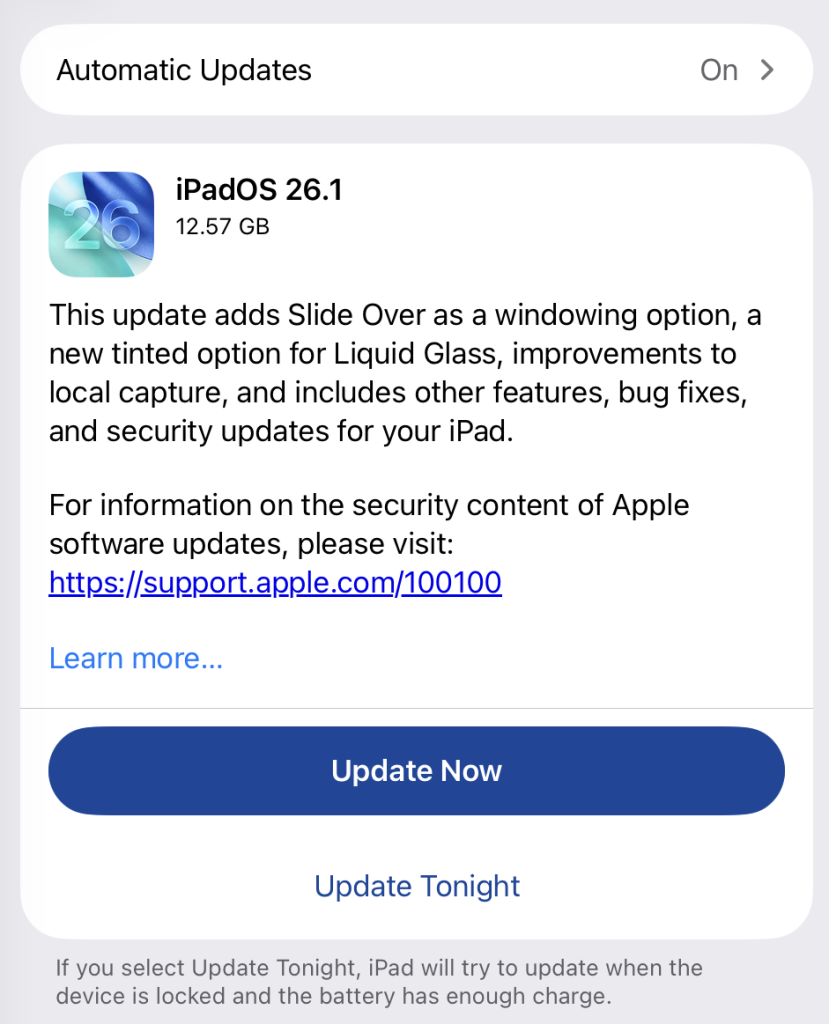
For iOS and iPadOS users, here's how to check if you’re using the latest software version:
* Go to **Settings** > **General** > **Software Update**.
* Turn on **Automatic Updates** if you haven’t already—you'll find it on the same screen.
### How to update macOS on any version
To update macOS on any supported Mac, use the Software Update feature, which Apple designed to work consistently across all recent versions. Here are the steps:
* Click the Apple menu in the upper-left corner of your screen.
* Choose **System Settings** (or **System Preferences** on older versions).
* Select **General** in the sidebar, then click **Software Update** on the right. On older macOS, just look for **Software Update** directly.
* Your Mac will check for updates automatically. If updates are available, click **Update Now** (or **Upgrade Now** for major new versions) and follow the on-screen instructions. Before you upgrade to macOS Tahoe 26, please read these instructions.
* Enter your administrator password if prompted, then let your Mac finish the update (it might need to restart during this process).
* Make sure your Mac stays plugged in and connected to the internet until the update is done.
### How to update Apple Watch
Ensure your iPhone is paired with your Apple Watch and connected to Wi-Fi, then:
* Keep your Apple Watch on its charger and close to your iPhone.
* Open the Watch app on your iPhone.
* Tap **General** >**Software Update**.
* If an update appears, tap **Download and Install**.
* Enter your iPhone passcode or Apple ID password if prompted.
Your Apple Watch will automatically restart during the update process. Make sure it remains near your iPhone and on charge until the update completes.
### How to update Apple TV
Turn on your Apple TV and make sure it’s connected to the internet, then:
* Open the Settings app on Apple TV.
* Navigate **to System** >**Software Updates**.
* Select **Update Software**.
* If an update appears, select **Download and Install**.
The Apple TV will download the update and restart as needed. Keep your device connected to power and Wi-Fi until the process finishes.
### How to update your Safari browser
Safari updates are included with macOS updates, so installing the latest version of macOS will also update Safari. To check manually:
* Open the **Apple menu** >**System Settings** >**General** >**Software Update**.
* If you see a Safari update listed separately, click **Update Now** to install it.
* Restart your Mac when prompted.
If you’re on an older macOS version that’s still supported (like Sonoma or Sequoia), Apple may offer Safari updates independently through Software Update.
### How to update Xcode
Xcode is Apple’s developer tool for building apps, so most people won't have this, but if you do, you'll need to keep it updated. Xcode updates come through the **App Store** :
* Open the **App Store** on your Mac.
* Click **Updates** in the sidebar.
* If an Xcode update is available, click **Update** next to it.
* You can also search for “Xcode” directly and click **Update** or **Get** if you’ve uninstalled it.
* * *
**We don’t just report on phone security—we provide it**
Cybersecurity risks should never spread beyond a headline. Keep threats off your mobile devices by downloading Malwarebytes for iOS, and Malwarebytes for Android today.
Installing these updates as soon as possible keeps your personal information—and everything else on your Apple devices—safe from attack.
## What caught our eye
Although Apple never releases full details before everyone has had a chance to apply the updates, two serious security flaws stand out:
* **CVE-2025-43442: **This vulnerability is a permission issue which is fixed in iOS 26.1 and iPadOS 26.1. It could allow an app to identify which other apps a user has installed. You can imagine that if a banking Trojan—like this one on Android—can see which banking apps and crypto wallets someone uses they can maximize their social engineering strategies to target that user.
* **CVE‑2025‑43455:** This is a privacy issue in watchOS 26.1, visionOS 26.1, iOS 26.1, and iPadOS 26.1. It allows malicious apps to capture screenshots of sensitive information in embedded views. Apple addressed this by tightening privacy checks and isolation policies.
## Updates for your particular device
This table shows which updates are available and points you to the relevant security content fot that operating system (OS).
iOS 26.1 and iPadOS 26.1| iPhone 11 and later, iPad Pro 12.9-inch 3rd generation and later, iPad Pro 11-inch 1st generation and later, iPad Air 3rd generation and later, iPad 8th generation and later, and iPad mini 5th generation and later
---|---
macOS Tahoe 26.1| macOS Tahoe
macOS Sequoia 15.7.2| macOS Sequoia
macOS Sonoma 14.8.2| macOS Sonoma
tvOS 26.1| Apple TV HD and Apple TV 4K (all models)
watchOS 26.1| Apple Watch Series 6 and later
visionOS 26.1| Apple Vision Pro
Safari 26.1| macOS Sonoma and macOS Sequoia
Xcode 26.1| macOS Sequoia 15.6 and later
## How to update your devices
### How to update your iPhone or iPad
For iOS and iPadOS users, here's how to check if you’re using the latest software version:
* Go to **Settings** > **General** > **Software Update**.
* Turn on **Automatic Updates** if you haven’t already—you'll find it on the same screen.

### How to update macOS on any version
To update macOS on any supported Mac, use the Software Update feature, which Apple designed to work consistently across all recent versions. Here are the steps:
* Click the Apple menu in the upper-left corner of your screen.
* Choose **System Settings** (or **System Preferences** on older versions).
* Select **General** in the sidebar, then click **Software Update** on the right. On older macOS, just look for **Software Update** directly.
* Your Mac will check for updates automatically. If updates are available, click **Update Now** (or **Upgrade Now** for major new versions) and follow the on-screen instructions. Before you upgrade to macOS Tahoe 26, please read these instructions.
* Enter your administrator password if prompted, then let your Mac finish the update (it might need to restart during this process).
* Make sure your Mac stays plugged in and connected to the internet until the update is done.
### How to update Apple Watch
Ensure your iPhone is paired with your Apple Watch and connected to Wi-Fi, then:
* Keep your Apple Watch on its charger and close to your iPhone.
* Open the Watch app on your iPhone.
* Tap **General** >**Software Update**.
* If an update appears, tap **Download and Install**.
* Enter your iPhone passcode or Apple ID password if prompted.
Your Apple Watch will automatically restart during the update process. Make sure it remains near your iPhone and on charge until the update completes.
### How to update Apple TV
Turn on your Apple TV and make sure it’s connected to the internet, then:
* Open the Settings app on Apple TV.
* Navigate **to System** >**Software Updates**.
* Select **Update Software**.
* If an update appears, select **Download and Install**.
The Apple TV will download the update and restart as needed. Keep your device connected to power and Wi-Fi until the process finishes.
### How to update your Safari browser
Safari updates are included with macOS updates, so installing the latest version of macOS will also update Safari. To check manually:
* Open the **Apple menu** >**System Settings** >**General** >**Software Update**.
* If you see a Safari update listed separately, click **Update Now** to install it.
* Restart your Mac when prompted.
If you’re on an older macOS version that’s still supported (like Sonoma or Sequoia), Apple may offer Safari updates independently through Software Update.
### How to update Xcode
Xcode is Apple’s developer tool for building apps, so most people won't have this, but if you do, you'll need to keep it updated. Xcode updates come through the **App Store** :
* Open the **App Store** on your Mac.
* Click **Updates** in the sidebar.
* If an Xcode update is available, click **Update** next to it.
* You can also search for “Xcode” directly and click **Update** or **Get** if you’ve uninstalled it.
* * *
**We don’t just report on phone security—we provide it**
Cybersecurity risks should never spread beyond a headline. Keep threats off your mobile devices by downloading Malwarebytes for iOS, and Malwarebytes for Android today.
Basic Information
ID
MALWAREBYTES:632BA880954A1BE6598D18317AE23223
Published
Nov 5, 2025 at 11:14