
Security Update News
Update Information
| Title | How to update Chrome on every operating system |
|---|---|
| Update ID | MALWAREBYTES:C7562B1DCD2864F2EA13E01B233F1E9F |
| Type | malwarebytes |
| Published | 2025-06-06T17:00:00 |
| Last Updated | 2025-06-06T17:00:00 |
Security Impact
| CVSS Score | 0.0 |
|---|---|
| Severity | NONE |
| Attack Vector |
Affected CVEs
Update Details
Keeping your Google Chrome browser up to date is essential for security, performance, and access to the latest features. Whether you’re on Windows, Mac, Linux, Android, or iOS, updating Chrome is straightforward, if you know where to look.
But first a few words about the version numbers, because they can be confusing at times.
The Chrome version number consists of four parts separated by dots, like this:
**MAJOR.MINOR.BUILD.PATCH**
Each part has a specific meaning. In order of relevance they are:
* **MAJOR** : This number increases with significant releases that may include major new features or changes. It usually raises in increments about 7 – 8 times per year, roughly every 6 weeks, reflecting Chrome’s release cycle.
* **MINOR** : This number is typically zero and rarely changes. It mainly supports the versioning scheme but doesn’t usually affect how users track updates.
* **BUILD** : This number increases steadily and represents a specific snapshot of Chrome’s source code at a given time. It advances with each new build candidate and is the key indicator of how recent the core code is.
* **PATCH** : This number changes in increments for smaller fixes and security patches applied to a particular build. It resets with each new build and helps identify minor updates within the same build.
For example, a version like **137.0.7151.56** means:
* Major version 137 (the milestone release)
* Minor version 0 (standard)
* Build number 7151 (the code snapshot)
* Patch number 56 (the latest fix on that build)
### Why does the version number matter?
The **BUILD** and **PATCH** numbers together uniquely identify the exact code you are running. Even if two versions share the same major number, a higher build or patch number means you have a newer, more up-to-date Chrome version.
Sometimes you might see slightly different patch numbers on the same major build, for example, **118.0.5993.117** vs. **118.0.5993.118**. This usually happens because Google released a quick fix or minor patch shortly after the initial release. Both are part of the same major update, but the higher patch number is newer.
## How to check if you have the latest version
To verify your Chrome version:
1. Open Chrome.
2. Click the three-dot menu (⋮) in the top-right corner.
3. Go to **Help** > **About Google Chrome**.
Chrome will display your current version and automatically check for updates. If a newer version is available, it will download and prompt you to relaunch once it’s ready updating.
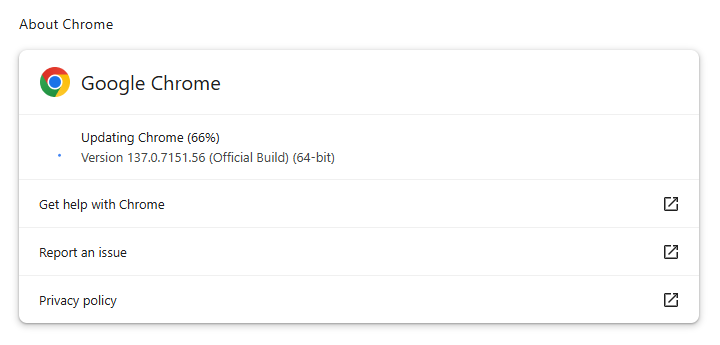Chrome is updating
## Update Chrome on Windows
Method 1: Use Chrome’s built-in update feature
1. Open Chrome.
2. Click the three-dot menu icon (⋮) in the top-right corner.
3. Hover over **Help** , then click **About Google Chrome**.
4. Chrome will automatically check for updates and download them if available.
5. Once downloaded, click **Relaunch** to complete the update.
To enable automatic updates for Google Chrome on Windows, ensure that the “**Automatically update Chrome for all users** ” option is enabled in Chrome’s settings. You can find this setting by going to “**About Google Chrome** ” within the Chrome settings. Closing and restarting Chrome may be required to apply the update.
Method 2: using Windows Update (for Chrome Enterprise)
If your organization manages Chrome updates via Windows Update or group policies, updates may be automatic. Contact your IT admin if you don’t see updates.
## Update Chrome on macOS
Method 1: For each device
1. Open Chrome.
2. Click the three-dot menu icon (⋮) at the top-right.
3. Select **Help** > **About Google Chrome**.
4. Chrome will check for updates and install them automatically.
5. Click **Relaunch** to finish updating.
You can also set up automatic browser updates for all users of your computer if Google Chrome is installed in your Applications folder. Go to “**About Google Chrome** ,” and click **Automatically update Chrome for all users**.
Method 2: For Chrome Enterprise
As a Mac administrator, you can use Google Software Update to manage Chrome browser and Chrome apps updates on your users’ Mac computers.
## Update Chrome on Linux
Chrome updates on Linux depend on your distribution and how you installed it.
For Debian/Ubuntu-based systems:
1. Open a terminal.
2. Run:
`sudo apt update`
`sudo apt –only-upgrade install google-chrome-stable`
3. Restart Chrome to apply updates.
For Fedora/openSUSE:
1. Open a terminal.
2. Run:
`sudo dnf upgrade google-chrome-stable`
3. Restart Chrome.
If you installed Chrome via a package manager, it should handle updates automatically when you update your system.
## Update Chrome on Android
Chrome updates on Android are handled through the Google Play Store:
1. Open the **Google Play Store** app.
2. Tap your profile icon (top right).
3. Select **Manage apps & device**.
4. Under **Updates available** , look for **Chrome**.
5. Tap **Update** next to Chrome if available.
Alternatively, if you have auto-updates enabled, Chrome updates automatically. To enable auto-updates for Android apps, open the Google Play Store, tap your profile picture, go to “Manage apps and device,” and then tap “Manage.” Select the app you want to update automatically, tap the “More” button, and toggle on “Enable auto-update.”
## Update Chrome on iOS (iPhone and iPad)
Chrome updates on iOS come through the Apple App Store:
1. Open the **App Store**.
2. Tap your profile icon at the top right.
3. Scroll down to **Available Updates**.
4. Find **Google Chrome** and tap **Update**.
If auto-updates are enabled on your device, Chrome updates automatically.
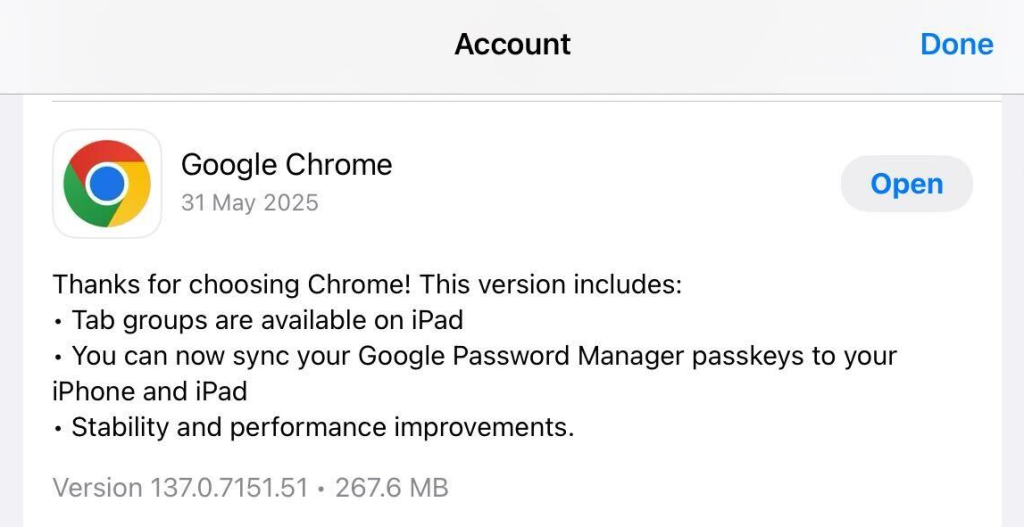Chrome in App Store’s recently updated section
## Updating Chrome on Chrome OS
Chrome OS updates include Chrome browser updates:
1. Click the time in the bottom-right corner.
2. Click the **Settings** gear icon.
3. In the left menu, select **About Chrome OS**.
4. Click **Check for updates**.
5. If an update is available, it will download and install automatically.
6. Restart your Chromebook to complete the update.
Summary table of update methods
**Platform**| **Update Method**| **Notes**
—|—|—
Windows| Chrome Menu > Help > About Chrome| Manual or automatic update
macOS| Chrome Menu > Help > About Chrome| Manual or automatic update
Linux| Package manager commands| Varies by distro
Android| Google Play Store| Manual or automatic update
iOS| Apple App Store| Manual or automatic update
Chrome OS| Settings > About Chrome OS| System update
If you still have questions about updating the Chrome browser, let us know in the comments and allow us to update this article.